To create an Agent and a User please follow the below steps:
Creating Agents:
- Select ‘ACCOUNT SETTINGS’
- Select ‘Users’ tab
- Select ‘Agents’
- Select ‘New Agent’
The following information is required for each new agent –
- Agent Name: This is referred to the name of a shop for example.
- Active: Please click on this box if you want the agent and any of its users to be able to log in and sell. If at any moment you decide to stop working with this agent, you can deactivate the agent here.
- Balance Enabled: By checking this box, the agent will have access to only assigned funds from the master balance. Options are made available in this step to give the agent an Opening Balance and to define their commission. By leaving this box unchecked, the agent will have full access to the master balance.
- Contact information: Indicate the information required for each case
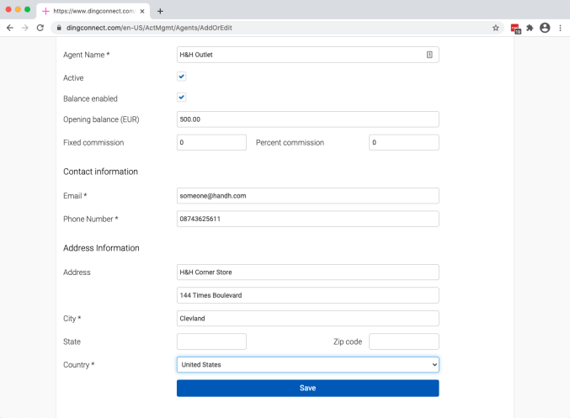
Figure 1: Creating an Agent
Creating Users:
The following creates a new user for an agent –
- Select ‘ACCOUNT SETTINGS’
- Select ‘Users’ tab
- Select ‘Users’
- Select ‘New User’
- Select the user type to create:
- Agent User: if creating a Manager, Supervisor, Teller or Finance user.
- Administrator User: if creating an administrator.
The following information is required for each new user –
- Email will be the user’s DingConnect username.
- Password will be the user’s password.
- Approved indicates whether they are approved and can therefore log in. A user can be blocked from accessing their account by unchecking this box.
- 2FA is checked by default, which will have them enable 2-factor authentication on the first login. It is recommended all users use 2FA when accessing your account. Your DingConnect balance is your wallet and should be protected. When 2FA is enabled for an account, even if someone knows the username and password, their access will be blocked unless they enter the correct one-time code which has been sent to the user by SMS.
- Locked must be disabled for the user to transact.
- Agent defines which agent the user belongs to.
- Role defines what the user will be allowed to do. The roles in this dropdown will be limited by the privileges of the logged-in user creating the new user.
- IP/DNS Address is an optional security measure if there is a static IP address for the outlet. Adding IP or DNS here ensures only access to the DingConnect portal from that IP/DNS address is allowed.
-
Contact Information defines the rest of the user's contact information.
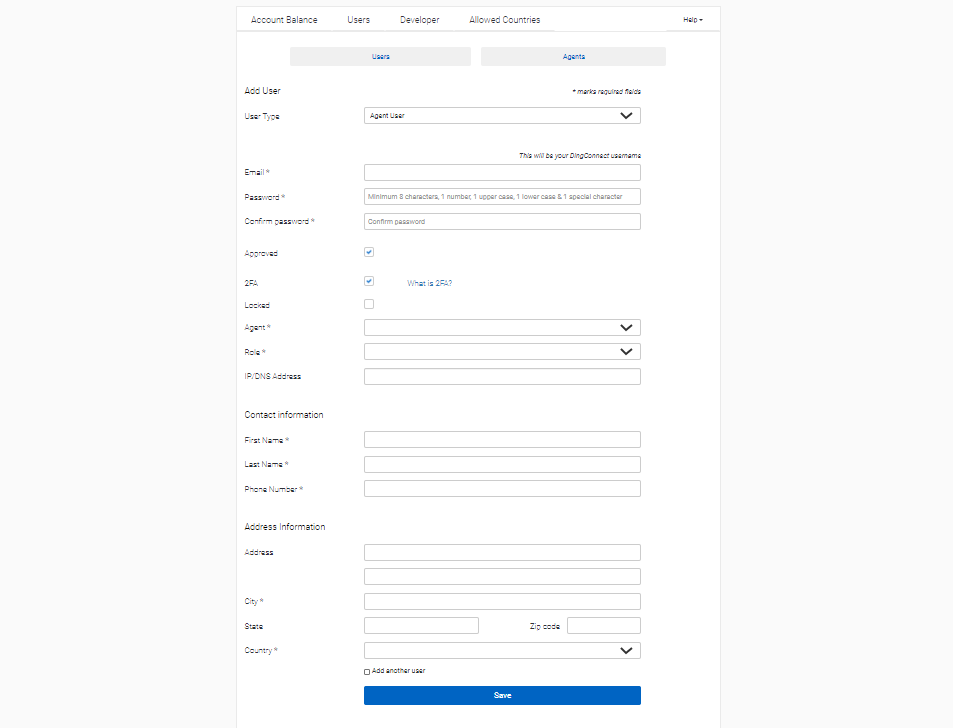
Figure: 2 Creating a User